How to Create Professional AI Videos Without Video Editing Skills
Never edited a video? You can still make professional AI videos. Here's the exact beginner workflow, from idea to finished clip, plus the mistakes to avoid.
 By Yasiru Withanage9 min readUpdated 25 October 2026
You've got an idea for a video. Maybe it's a product ad, a short film, a funny reel, or a story you've been carrying around for months.
Then reality kicks in. You don't know Premiere Pro. You don't own a camera worth filming on. And the last time you opened a video editor, you closed it again within five minutes.
Here's the good news: in 2026, that doesn't matter nearly as much as it used to. AI video tools like Veo, Kling, Runway, MiniMax and Seedance can turn a well-written description into a cinematic clip. The skill that matters now isn't editing. It's knowing what to ask for, and in what order.
This guide walks you through the exact workflow beginners use to create professional-looking AI videos, step by step, with no editing background required.
Why traditional video production is so hard
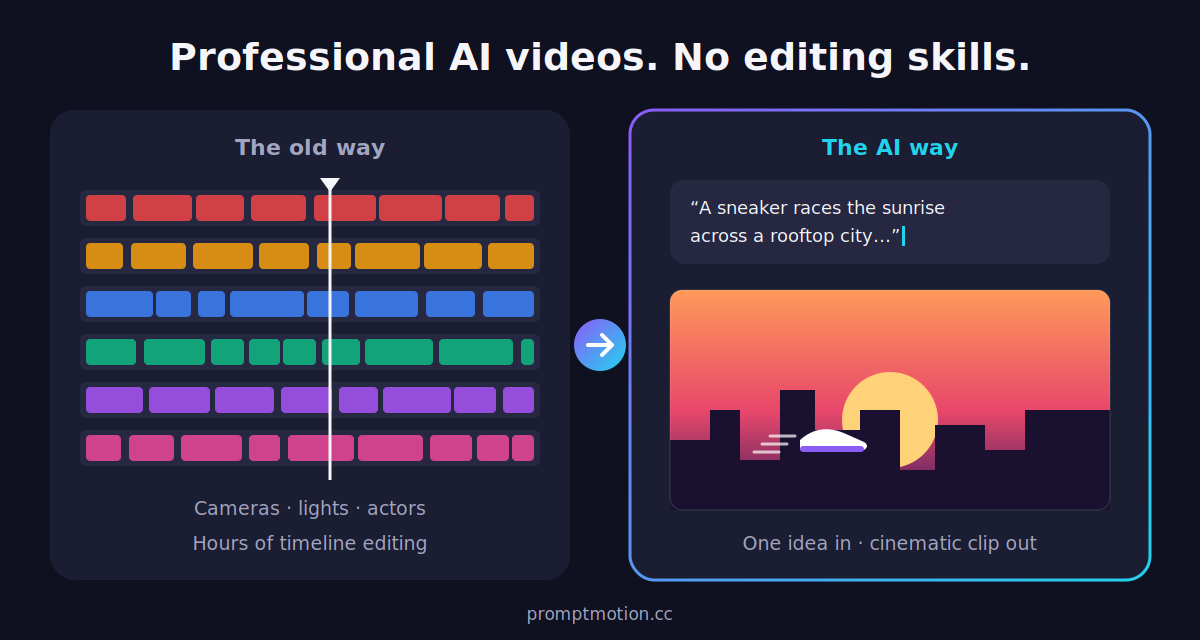
A 30-second video looks simple when you watch it. Behind it, though, there's usually a small army of skills that most people simply don't have.
Think about everything a "normal" video needs: someone to write the script, someone to plan the shots, a camera and the person who knows how to use it, lighting, locations, actors, and then hours in an editing timeline cutting, colour grading, syncing audio and exporting. Miss any one of those and the whole thing starts to look amateur.
That's why so many good ideas never become videos. It's not a lack of creativity. It's a lack of time, money and technical know-how.
| Traditional production | AI video workflow | |
|---|---|---|
| Equipment | Camera, lights, mics, sometimes drones | A laptop or phone |
| Locations and actors | Need to be found, booked, paid | Described in words |
| Biggest skill needed | Shooting and editing | Clear creative direction |
| Changing a shot | Reshoot it | Rewrite the prompt and regenerate |
| Who can do it | Trained crews and editors | Anyone who can describe what they want |
Traditional production compared with the AI video workflow
AI doesn't remove the need for good ideas. It removes the gatekeepers between your idea and the screen.
What you actually need to create an AI video
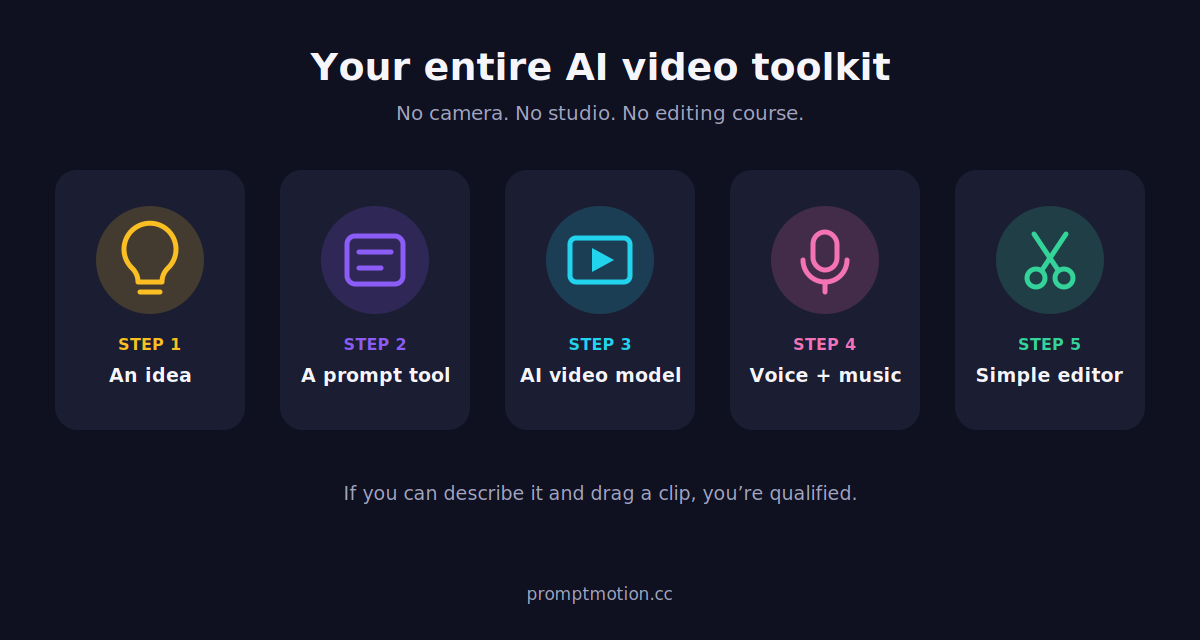
The shopping list is refreshingly short. You don't need a studio. You need five things:
- An idea. Even a rough one. "A cat who runs a coffee shop" is enough to start.
- A prompt tool. AI video models are powerful but picky. A tool like PromptMotion turns your rough idea into structured, model-ready prompts with camera, lighting and movement already planned.
- An AI video generator. Veo 3.1, Kling, Runway, MiniMax or Seedance. Each has its own strengths, and most offer free or low-cost credits to try.
- A voice and music source. An AI voice tool for narration, and a royalty-free music library.
- A simple editor. Something beginner-friendly like CapCut, just to stitch clips together. If you can drag and drop, you're qualified.
That's it. Notice what's missing: no camera, no lighting kit, no editing course.
The beginner's AI video workflow at a glance
Before we dig into each step, here's the whole process on one page. Bookmark this; it's the same loop whether you're making a 15-second Reel or a 3-minute short film.
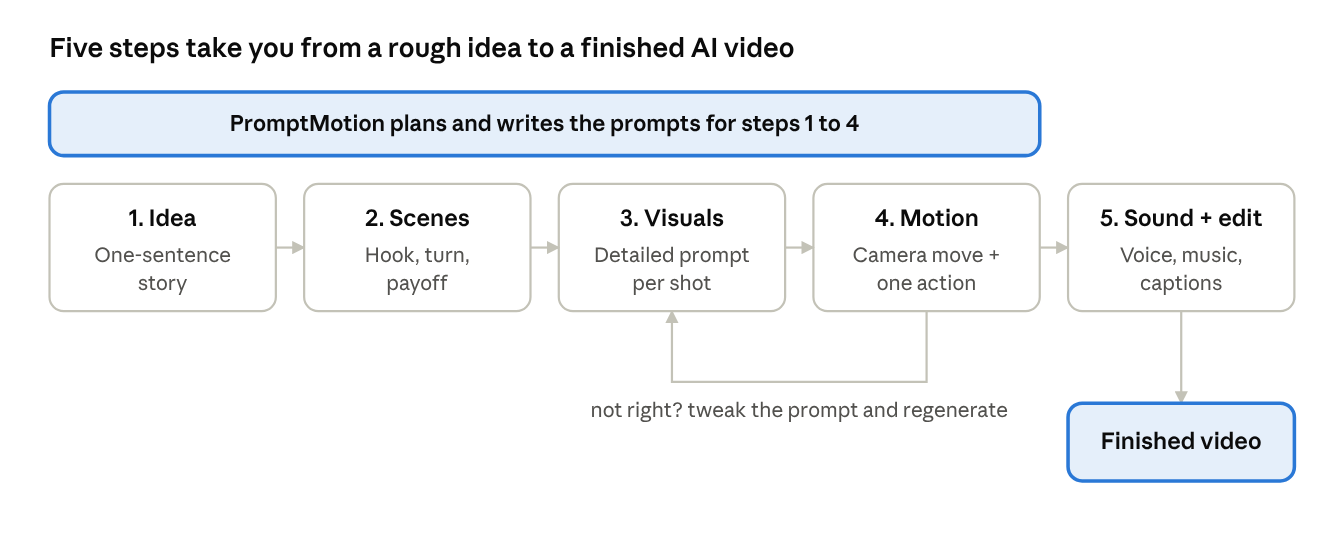
Notice the little loop between visuals and motion. That's normal. Even pros regenerate a shot two or three times before it feels right.
Step 1: Start with an idea (not a prompt)
Most beginners jump straight into a video generator and type something like "cool cinematic video of a city." The result looks generic, because the idea was generic.
Before you touch any tool, answer three quick questions:
- Who is this for? Instagram followers, potential customers, your YouTube audience?
- What should they feel? Laugh, feel inspired, want to buy, want to share?
- What's the one-sentence story? Something happens, something changes, it ends.
Here's the difference in practice:
| Weak idea | Strong idea |
|---|---|
| A video about coffee | An exhausted student takes one sip of coffee and the grey room bursts into colour |
| A shoe ad | A pair of sneakers races a sunrise across a rooftop city and wins |
| Funny animal video | A capybara calmly eats a chilli, then the frog next to him panics on his behalf |
Weak ideas compared with strong ideas
A strong idea has a character, a change and a payoff. Get that sentence right and everything after it gets easier.
Step 2: Plan your scenes like a director
Here's something nobody tells beginners: most AI video models generate short clips, usually just a few seconds each. A "professional" AI video is really a series of short shots stitched together with intention.
So instead of asking for one long video, break your idea into scenes. A simple three-act structure works for almost everything:
| Scene | Purpose | Example (coffee idea) |
|---|---|---|
| 1. Hook | Grab attention in the first 2 seconds | Close-up of a student's tired eyes, desk lamp flickering |
| 2. Turn | Something changes | Hand lifts a steaming mug, first sip |
| 3. Payoff | The emotional or visual reward | The grey room explodes into warm colour, student smiles |
A three-scene structure with an example from the coffee idea
For each scene, jot down four things: who's in it, where it happens, what moves, and how the camera sees it. That last one matters more than people think. "Slow push-in" and "handheld tracking shot" create completely different feelings from the same scene.
This is the part that usually takes a filmmaker years to learn. It's also exactly what PromptMotion automates: you give it your idea, and it builds the cast and shot list for you, keeping your characters consistent from one clip to the next.
Step 3: Generate your visuals
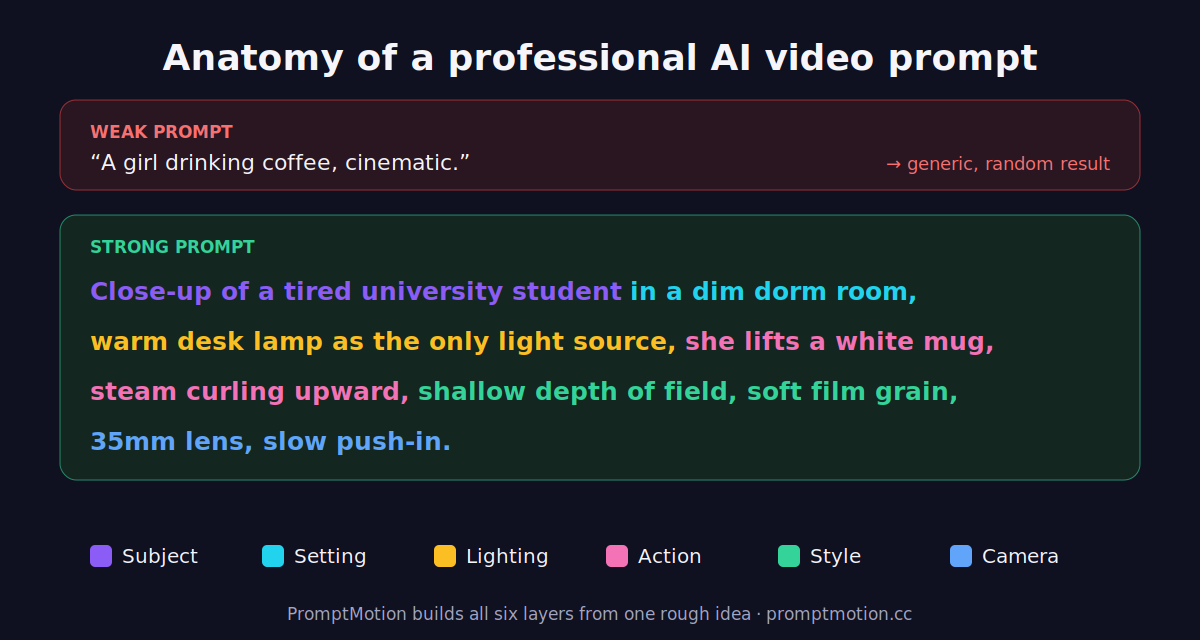
Now the fun part. This is where your scene plan becomes something you can actually see. The secret to professional-looking results is specific prompts. AI models don't read your mind. They read your words. Compare these two:
A girl drinking coffee, cinematic.
Close-up of a tired university student in a dim dorm room, warm desk lamp as the only light source, she lifts a white ceramic mug, steam curling upward, shallow depth of field, soft film grain, 35mm lens, slow push-in.
The second prompt tells the model about the subject, setting, lighting, action, lens and camera movement. That's the recipe for footage that looks shot, not generated.
A good visual prompt usually covers:
- Subject: who or what, with a few defining details
- Setting: where, and what time of day
- Lighting: the light source and mood (golden hour, neon, overcast)
- Style: realistic, animated, film look, colour palette
- Camera: shot size and lens
Keeping characters consistent is the biggest challenge for beginners. Describe your character the same way in every scene, or generate a reference image first and reuse it. PromptMotion handles this by locking your cast details and carrying them across every shot prompt automatically.
Step 4: Add motion that feels intentional
A beautiful frame that just sits there isn't a video. Motion is what makes AI footage feel alive, and also where a lot of beginner clips fall apart.
There are two kinds of motion to think about:
- Subject motion: what moves inside the frame. Hair blowing, a hand reaching, rain falling, a car turning a corner. Keep it simple: one clear action per clip beats five things happening at once.
- Camera motion: how the "camera" moves through the scene. A few beginner-friendly moves that always look professional:
| Camera move | What it feels like | Use it for |
|---|---|---|
| Slow push-in | Intimacy, tension, focus | Emotional moments, reveals |
| Pull-back | Scale, isolation, endings | Final shots |
| Orbit | Premium, showcase | Products, hero characters |
| Tracking shot | Energy, following action | Running, walking, chases |
| Static shot | Calm, observational | Comedy beats, dialogue |
Beginner-friendly camera moves, what they feel like and when to use them
You can generate motion two ways: text-to-video (describe everything and let the model create it) or image-to-video (start from a still frame you like and animate it). Image-to-video gives you more control over how each shot looks, which is why many creators prefer it for consistency.
PromptMotion's "Send to Director" feature plans camera, lighting, movement and composition for each shot before writing the final prompt, so you get the director's thinking without needing film school.
Step 5: Voice, music and a light edit
You have your clips. Now let's turn them into a finished video. Don't panic: "editing" here means arranging, not mastering complex software.
Voice. If your video needs narration, write a short script that matches your scenes (roughly two to three words per second of video). Then generate it with an AI voice tool and pick a voice that fits the mood. Some newer video models can also generate dialogue and sound directly in the clip.
Music. Music does half the emotional work. Choose a royalty-free track whose energy matches your story, and make sure the big moment in the music lines up with your payoff scene.
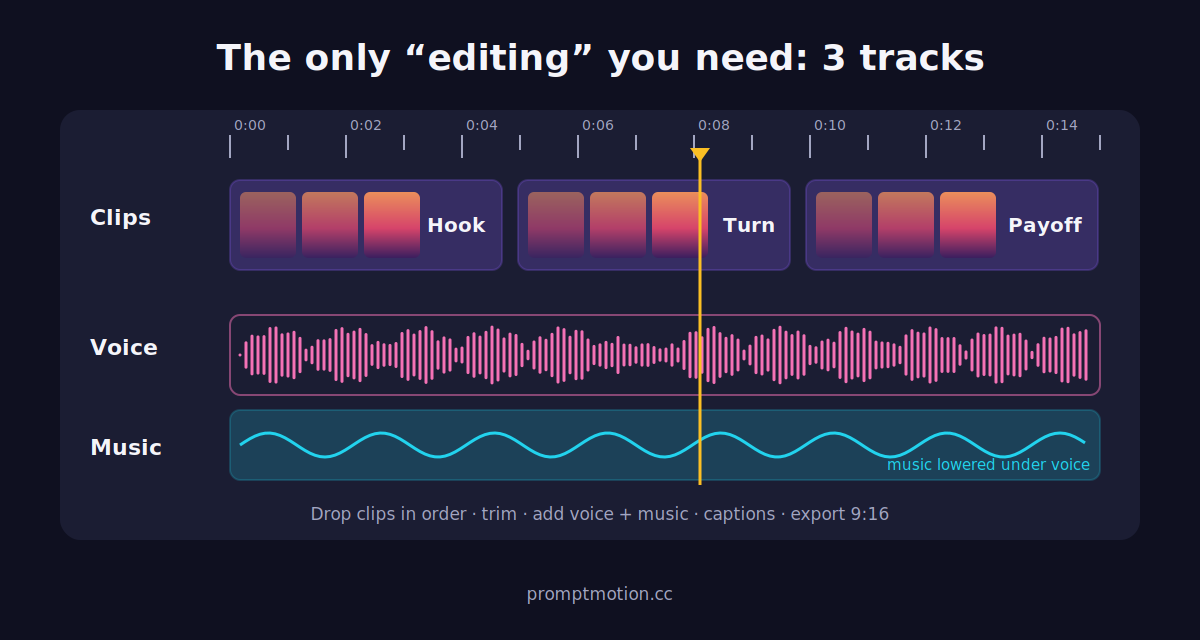
The edit. Open a beginner editor like CapCut and do just this:
- Drop your clips on the timeline in scene order
- Trim the dead frames at the start and end of each clip
- Add your voiceover and music, then lower the music under the voice
- Cut on the beat of the music where you can
- Add captions (most people watch on mute)
- Export in the right format: vertical 9:16 for Reels, TikTok and Shorts, 16:9 for YouTube
That checklist is genuinely 90% of what makes a short-form video feel polished.
7 common beginner mistakes (and how to fix them)
Everyone makes these. The trick is making them once.
- Writing vague prompts. "Epic cinematic video" gives the model nothing to work with. Fix: describe subject, setting, lighting, camera and action every time.
- Cramming too much into one clip. Three characters, an explosion and a dance routine in four seconds will melt. Fix: one shot, one action.
- Characters that change face every scene. Your hero suddenly has different hair in shot two. Fix: reuse the exact same character description, or start each shot from a reference image.
- No story, just pretty shots. Ten gorgeous clips with no beginning, middle or end feel like a screensaver. Fix: always plan a hook, a turn and a payoff.
- Ignoring the first two seconds. On social media, that's all you get. Fix: open on your most striking or curious image.
- Giving up after one generation. AI video is a bit like photography: you take a few shots and keep the best. Fix: generate two to four variations of important scenes.
- Forgetting sound. Silent AI clips feel unfinished. Fix: even a simple music bed and captions lift the whole thing.
Notice that almost none of these are editing problems. They're planning and prompting problems, which is good news, because those are much easier to fix.
Frequently asked questions
Can I really make a professional AI video with no editing experience? Yes. The hardest parts of video (filming, lighting, locations) are now handled by AI models. What's left is creative direction and simple clip arranging, which anyone can learn in an afternoon.
Which AI video generator is best for beginners? It depends on your style. Veo 3.1, Kling, Runway, MiniMax and Seedance all produce strong results. The bigger factor is prompt quality: a great prompt in any of them beats a weak prompt in the "best" one.
How long does it take to make an AI video? A short social video can come together in an hour or two once you know the workflow. Planning your scenes properly up front saves the most time.
How do I keep my character looking the same in every scene? Use an identical character description in every prompt, or generate a reference image and use image-to-video. PromptMotion keeps cast details consistent across shots for you.
Do I need to learn prompt engineering? It helps, but you don't have to. Tools like PromptMotion turn a plain-language idea into structured, model-ready prompts.
Create your first AI video with PromptMotion
You don't need editing skills to make professional videos anymore. You need a clear idea and the right prompts.
That's exactly what PromptMotion was built for. Type your rough idea in plain words, and PromptMotion turns it into a full, structured plan: your cast, your shots, camera moves, lighting and ready-to-paste prompts for Veo 3.1, Kling, Runway, MiniMax and Seedance.
More than 1,500 creators are already using it to skip the guesswork.
Your first video is closer than you think.
Start free on PromptMotion and turn your idea into your first AI video today.

About the author
Yasiru Withanage — Founder | Head of AI & Computer Vision, Calexa Innovations Pvt Ltd
Yasiru Withanage is the Founder and Head of AI & Computer Vision at Calexa Innovations. With 6+ years in AI engineering, he builds production-ready systems across computer vision, generative AI, LLMs, and multi-agent systems. He also developed PromptMotion, an AI creative platform that helps creators turn ideas into cinematic video prompts.
Want prompts like these written for your own brief?
Paste your notes. PromptMotion writes the prompt.
Try it free